

Views: 0 Author: Site Editor Publish Time: 2026-10-30 Origin: Site


If your DVR sewer camera shows a live image but will not save video, check the selected recording destination, available space, media compatibility and recording status before assuming the camera head has failed. If recordings already exist but cannot be copied, follow the transfer path separately: direct USB connection, removable USB drive or SD card reader. These methods are not interchangeable. Protect existing inspection footage before formatting or repair attempts. A test clip, stopped normally and checked on both the recorder and computer, can help separate a recording fault from a file access or playback problem.
A visible live image confirms that an image is reaching the display; it does not confirm that the DVR is writing a file. Start with the symptom and change one variable at a time.
Symptom | Check first | Next action |
|---|---|---|
No SD card detected | Seating, type and capacity | Power down; reseat or test compatible spare |
Recording will not start | Destination, free space, write protection | Confirm settings and writable media |
Recording stops early | Power stability and available space | Test with approved power and spare media |
Playback works on camera only | Transfer route and file compatibility | Copy with the supported method |
Missing or zero-byte files | Save completion and actual destination | Preserve original media before further writes |
An incorrectly inserted, full, incompatible or damaged SD card can prevent saving. The DVR sewer camera may also be in photo or playback mode, or set to record to a different device. Verify that video recording is activated and that the screen displays the expected recording indicator or timer. Interrupted power can leave a recording incomplete even though the live view worked earlier.
If multiple confirmed-compatible cards fail under stable power, the slot or recorder becomes a stronger suspect. Avoid opening the control box or installing unverified firmware while troubleshooting storage.
Check seating, space and compatibility in that order. If valuable recordings are missing, stop writing to that card and use a separate compatible card for functional tests.
Stop any active recording and wait for the save process to finish according to the manual. Then power off before removing or inserting the card.
Check the insertion direction and inspect the card for cracks, bent contacts or contamination. Reinsert without force until seated as designed. If using a full-size SD adapter with a lock switch, verify that it is not set to write-protect.
Use the recorder's storage screen if available. Otherwise inspect the card through a compatible reader on a computer. Check free space on the device actually selected for recording. Back up completed jobs and confirm those copies open before deleting originals.
Read the model's instructions for the required file system and preparation method. FAT32, exFAT and other formats are not interchangeable across recorders. Do not apply a generic formatting recommendation from another camera.
Match physical format, SD family, capacity and any specified write-performance requirement. QYTeco's QY6565 SD recording camera specifies a maximum 32G SD card, while the QY6688 DVR camera system lists SD and USB storage up to 1TB each. These are model-specific limits, not universal specifications for the brand or every hardware revision.
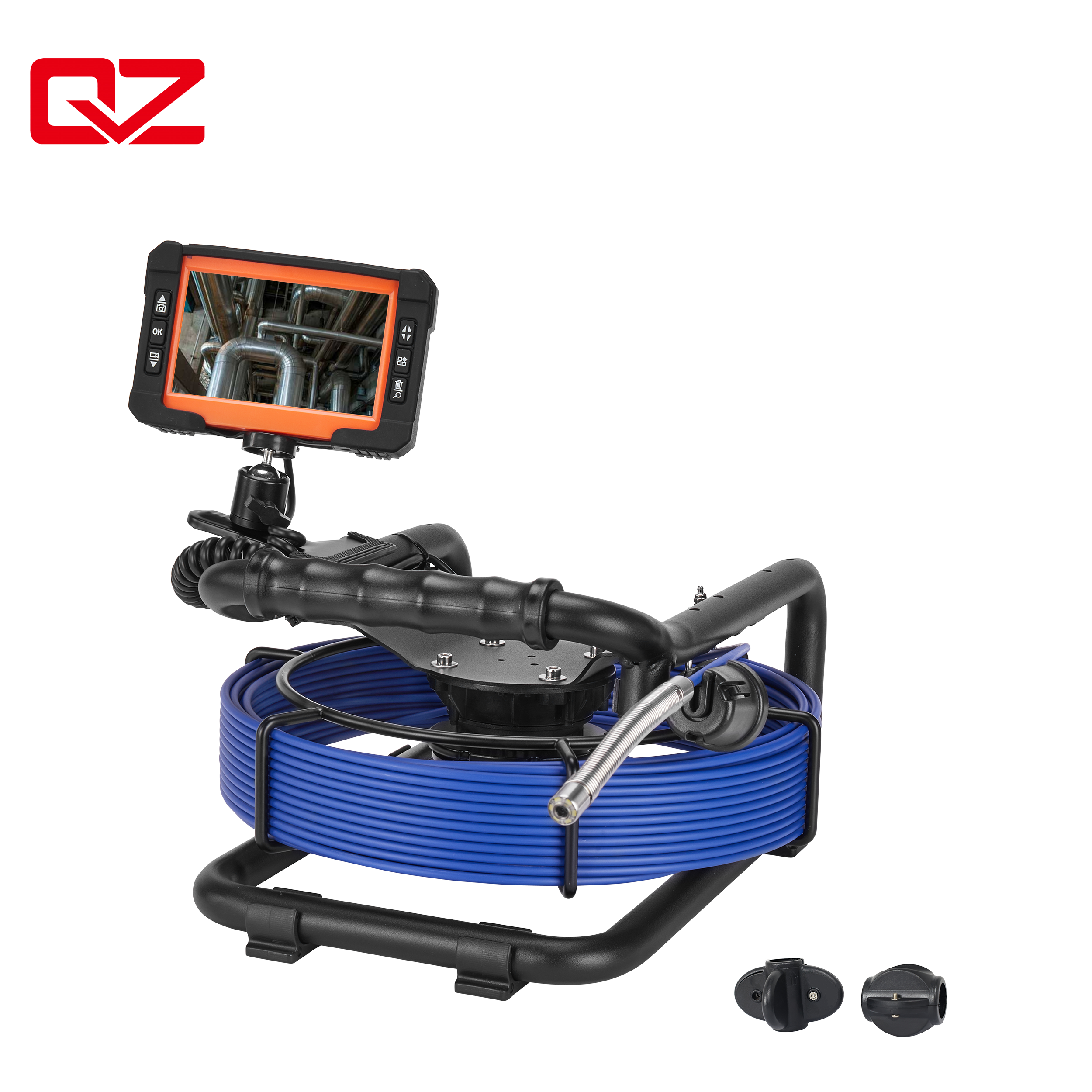
Use a known-working card that meets the exact recorder requirements. Make a short clip, stop it normally and review it. If the spare works, focus on the original card or its preparation.
Reseating, restarting and cross-testing come before formatting.
With power off, reseat the card once, then restart the recorder. Select the correct recording mode and destination. Avoid repeatedly removing the card or cycling power while the DVR is saving.
Copy important footage to another storage device and open representative files to verify the backup. If footage is missing or the card cannot be read, postpone formatting and consider data recovery support. Do not run a write-based repair merely because the computer offers it.
When no required data remains at risk, use the camera's recommended formatting procedure, preferably its built-in utility where specified. If computer preparation is required, follow the documented file system and settings. Confirm the selected drive carefully: formatting the wrong device can erase unrelated files. After formatting, test saving and playback before field use.
Replace physically damaged, incompatible or repeatedly unreliable cards. A successful format does not prove a card is dependable.
Power down and inspect the slot opening in good light. Remove loose contamination only by a method approved for that recorder. Do not insert metal tools, add liquid cleaner or scrape internal contacts. Bent contacts, corrosion or a card that will not latch require service.
First identify what the USB port does. Support for a USB flash drive does not establish that the camera acts as a USB storage device when connected directly to a computer.
Direct camera-to-computer transfer: use this only when the manual confirms it, including any required connection mode and cable.
SD card through a USB reader: stop recording, power down, remove the card and insert it into a reader compatible with its SD family and capacity.
Removable USB recording drive: where supported, stop and finalize recording, remove the drive as instructed, then connect it to the computer.
For a DVR sewer camera with both SD and USB destinations, confirm where the clip was saved. Finding an empty SD card is not evidence of recording failure if USB storage was selected.
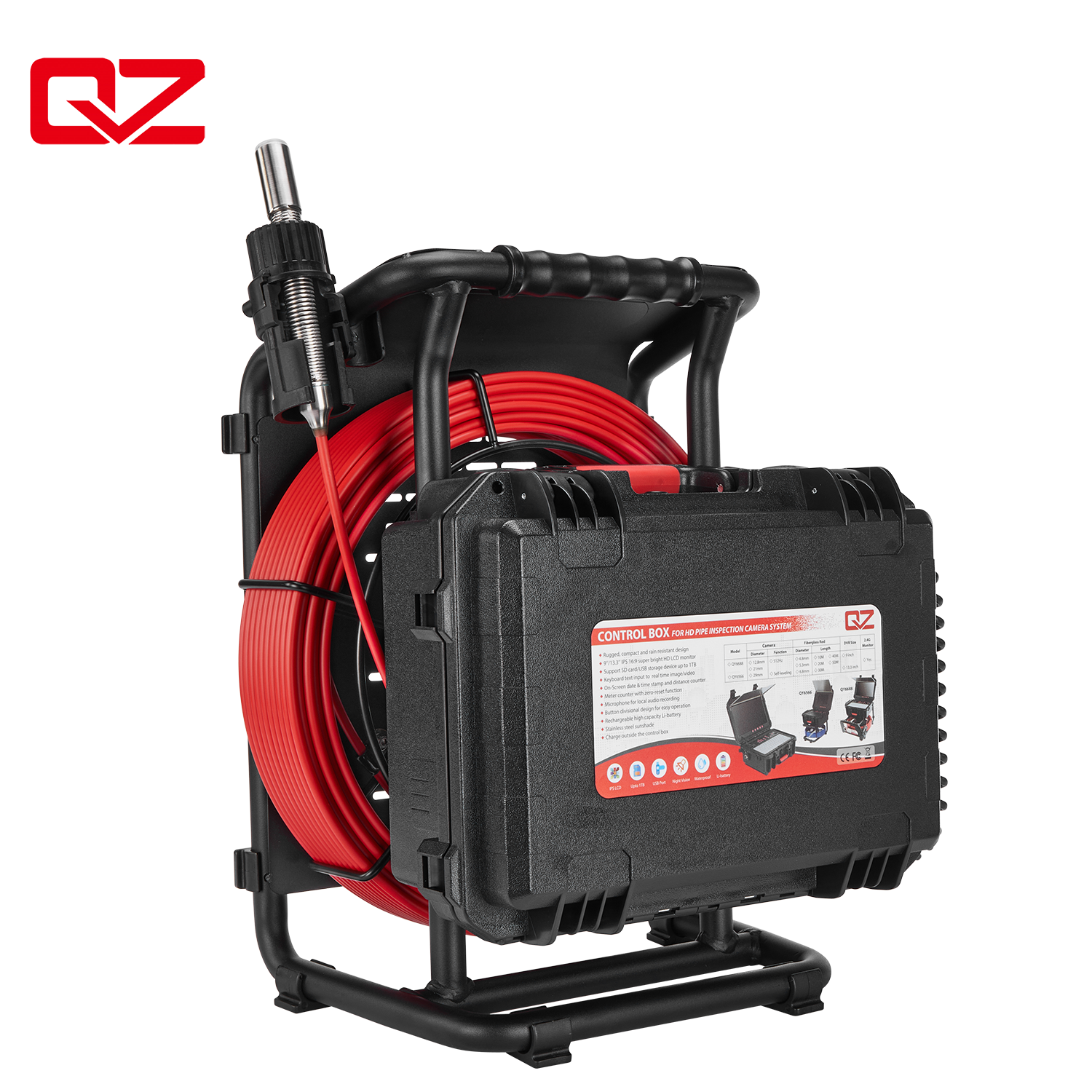
For supported direct transfer, use the specified cable; some cables supply power without carrying data. Check for loose plugs, dirt or physical damage. Try a known-working data cable and another computer USB port, preferably without a hub.
Determine whether the storage device appears in the operating system before looking for video. A device that is absent needs connection or reader checks; a visible device with unreadable files needs media or file checks. Cancel unexpected initialize or format prompts while needed footage remains on the device.
An external compatible reader can separate a direct-transfer problem from an SD card problem. If necessary, try another reader or computer. Copy to a local folder you can write to, and check that the destination has space. On managed computers, ask the administrator about removable-storage restrictions rather than disabling security controls.
Confirm whether a usable file exists before treating the problem as a player issue. Preserve the original media and investigate a copied file whenever possible.
Review the camera's playback list, recording destination, folders and timestamps. An incorrect clock may place footage under an unexpected date. Check whether only a still image was captured or whether recordings were divided into several clips. Search the actual storage device before assuming a transfer deleted the video.
A file reported as 0 KB may be truly empty or rounded by the file display; inspect its byte size. A zero-byte file contains no video payload, so changing players cannot restore it. Interrupted saving, media errors and power loss are possible causes, but file size alone does not identify the fault. Stop recording onto the affected media if missing footage matters.
Check the model's documented video format and any required playback software. A filename extension identifies a container or naming convention, not necessarily everything needed to decode the clip. Try a trusted compatible player on a copy. Do not rename the extension as a repair or download unknown codec packages.
If a normal-sized file plays on the recorder but fails on one computer, compare playback on another approved computer or application. If every copy is incomplete, return to recording, power and media checks.
Make recording verification part of job preparation and closeout. The useful test follows the entire path from capture to a readable backup.
Use manufacturer-recommended media and keep a compatible spare.
Check free space, battery condition and the selected destination before inspection.
Record a short clip and confirm playback before entering the pipe.
Do not remove storage or disconnect power during recording or saving.
Stop recording normally and allow finalization before shutdown.
Copy important footage using reliable cables or readers, then verify playback and job coverage.
Keep an additional backup before deleting or reusing the original media.
Escalate when several compatible media devices fail, recording remains unavailable under stable power, a USB port is physically damaged, or files repeatedly become corrupted. Water ingress, corrosion or unusual heat also warrants stopping use.
Provide the model, serial number, firmware version if accessible, media type and capacity, file system, exact error, power source and cross-test results. The QYTeco service center is a relevant route for model-specific guidance. Preserve original files and avoid repeated formatting while a data-loss issue is unresolved.
A DVR sewer camera recording fault is easier to isolate when capture, storage, transfer and playback are checked separately. Confirm the exact media requirements, protect existing footage, test a compatible spare and verify a normally stopped clip. Treat USB storage support and direct computer transfer as different capabilities. QYTeco, the sewer camera manufacturer associated with 深圳市仟焱科技有限公司, offers systems with different storage specifications, so the model's instructions should guide preparation and troubleshooting. Before returning to inspection work, confirm that a new recording saves, transfers and plays correctly; an active recording icon alone is insufficient evidence of a usable job record.
Possible causes include full or unsuitable media, incorrect destination or mode, write protection, interrupted power and a recorder fault. Test a short clip on compatible spare media under stable power.
The card may be incorrectly seated, incompatible, damaged or unreadable to the recorder. Power off before reseating it, then test another card meeting the model's requirements.
Verify and back up important footage first. Follow the recorder's documented formatting method and file system. Do not format if you still need to recover missing files.
Capacity is model-specific. Confirm the exact recorder specification and card type; a limit published for another system does not establish compatibility with yours.
Check that video recording started, the intended medium was selected, space was available and saving completed before shutdown. Review both SD and USB storage if the system supports them.
Only if that model supports direct USB data transfer. Otherwise use its supported removable drive or a compatible SD card reader. A USB socket alone does not confirm direct transfer.
Check the exact byte size. A genuinely empty file contains no video data; saving may have failed or been interrupted. Preserve the medium and avoid further writes if footage needs recovery.
Formats and codecs vary by recorder. Check the manual or a known-working file, and use compatible playback software. Changing a filename extension does not convert or repair video.


